Timing
While all runs will be timed by moderators, it can be helpful to know how to time a run yourself to know precisely where your run stands.
LosslessCut
For timing, I prefer to use the program LosslessCut, because it's free, open source, has precise measurements, is easy to use, and is also a useful tool. To download it, navigate here, look under "Assets", and click on the one that reads "LosslessCut-win-x64.7z". Extract into a folder of your choice.
Open the program, and drag your video on it. Press Space for start/pause, left/right arrow keys for moving forward or back 1 second, comma and period keys for moving forward or back one frame, and i/o for setting the start and end point.
First, let's find and set the start point. The exact point varies from game to game, so check your game and category's rules, in my example it's the first frame of the letter. Have the video paused, go to the rough area of this first frame, and use the comma and period keys to hone in on exactly the first frame you're looking for. Once you think you've found it, go back and forth a frame to make sure it is indeed correct, and once you're in the precise position where this first frame is currently visible on screen, press the "i" key.
Now let's find the end. Also varies on game and category, for my example death% run it'll be the title screen, do check your game/category rules. Same idea as before, use the controls to navigate to the point where the first visible run end frame is visible, wiggle back and forth to make sure it's correct, then press "o" on your keyboard to set the end point.
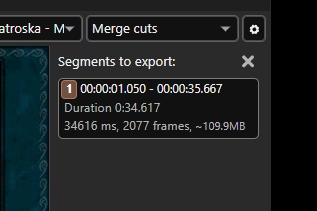
Now if you look at the segment you've created at the top right, you can see the precise time down to the millisecond, and even a frame count. That's all there is to it!
Side LosslessCut Tips
LosselessCut is also good for trimming down your long recordings to one isolated run without losing any quality. When making actual cuts and exporting, this program prefers to snap to keyframes. All this means is when you want to set your start and end point with the intent to export, hold "alt" when pressing the left/right arrow keys, and it'll snap to the nearest keyframe, and these points are where you can make the start/end points. Generally you want a little room before and after a run, so don't export your frame precise timing segment, that's just for information and should be deleted after if you intend to cut the same video file. Double check your export afterwards, and you've got a run ready to submit.